
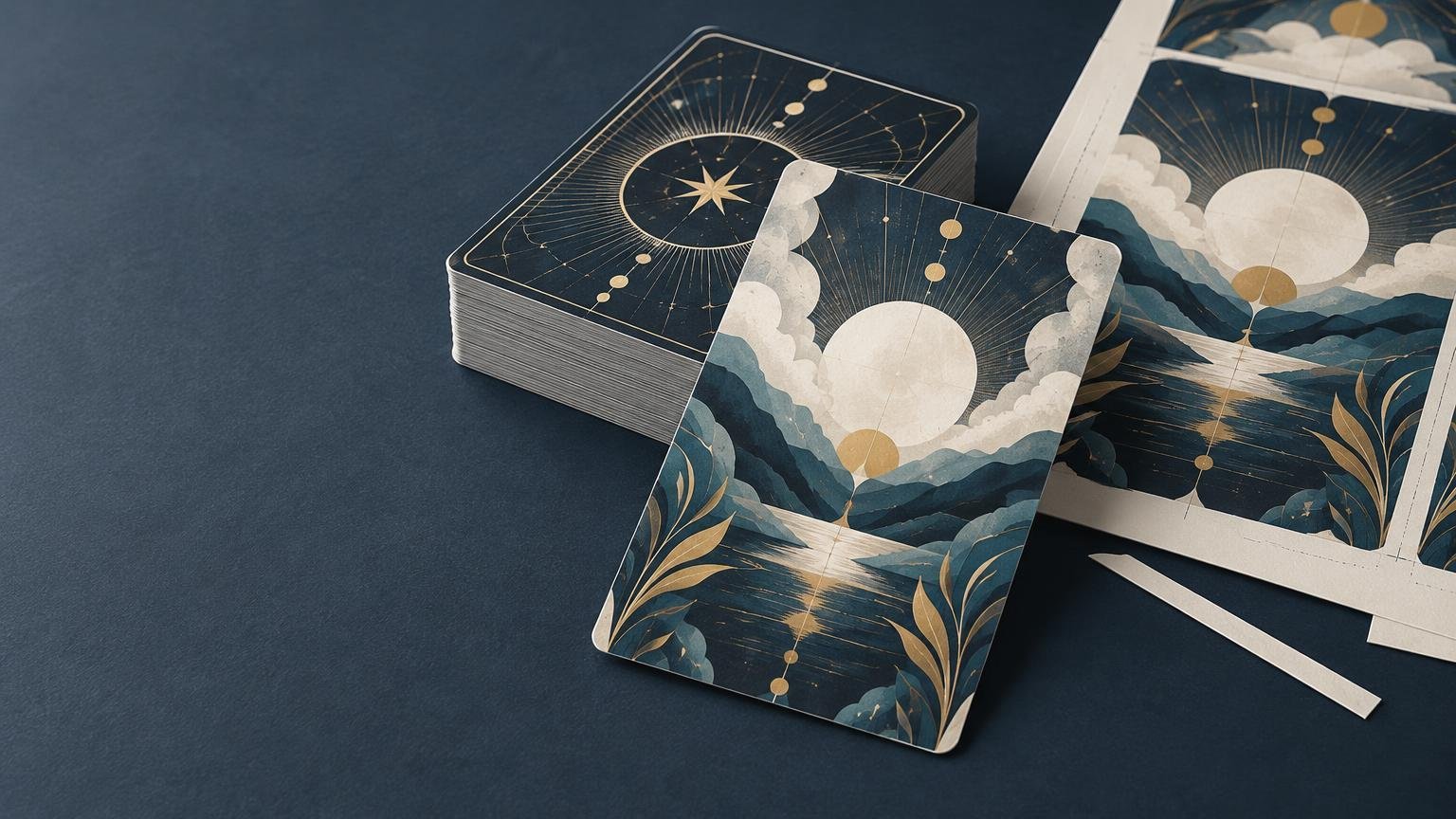
For full bleed tarot cards, extend all edge-reaching color and imagery beyond the trim line, but keep titles, card numbers, faces, symbols and other essential details inside the printer’s safe area. That combination gives the cutting equipment room to shift slightly without exposing an unprinted sliver or removing an important part of the illustration.
The main design decision is not simply whether the picture touches the edge. It is whether the outer part of the composition can tolerate being trimmed at slightly different positions. Clouds, gradients, stone textures and open sky make flexible perimeter artwork. Thin frames, fingertips, small symbols and precisely centered geometry do not. Build the edge to be expendable, even when the finished card is intended to look carefully composed.
Bleed, trim and safe area have different jobs
Bleed is artwork that extends outside the card’s intended finished edge. The trim line marks the planned finished size. The safe area sits inside that line and protects important content from normal cutting and alignment variation. Adobe’s definition likewise treats bleed as artwork extending beyond the crop or trim area and advises designers to confirm the required amount with the printer. Its Illustrator printing guidance also explains how document bleed settings can be used when preparing output.
| Zone | What it controls | What belongs there |
|---|---|---|
| Bleed | Extra image outside the finished card | Extended backgrounds, textures, gradients and nonessential scenery |
| Trim area | The planned finished face of the card | The visible composition, including artwork intended to reach the edge |
| Safe area | Protected space inside the trim line | Titles, numbers, faces, hands, fine symbols, logos and other critical details |
Think of these as nested zones rather than interchangeable margins. From outside to inside, the file contains bleed, the finished trim area and then the protected safe area. The exact measurements must come from the template for the product being ordered. A tarot specification from one supplier cannot automatically be applied to another size, cutting process or file workflow.
Why edge-to-edge artwork needs extra image
A card cannot be cut reliably to the exact same microscopic position on every copy. If the image stops at the trim line, a small cutting shift can reveal the unprinted substrate along one edge. Extending the image into the bleed gives the cut extra printed area to land on. The finished card still ends at approximately the trim line; bleed is production allowance, not additional finished card size.
This is why full-bleed artwork is often more forgiving than a narrow decorative frame. Printiverse’s artwork guidance calls for bleed wherever artwork reaches an edge and recommends keeping critical text, logos and details within the safe area. It also warns that hairline borders and thin frames can make ordinary alignment variation more visible. The School of the Art Institute of Chicago’s Service Bureau gives similar guidance: bleed provides extra image for trimming variation, while a no-bleed design should use a deliberately wider border rather than a narrow edge frame. See its full-bleed and no-bleed setup explanation.
Make the perimeter of the illustration expendable
A strong full-bleed composition has a visual buffer around its important subject. Extend backgrounds naturally rather than stretching the entire finished illustration. If the card shows a figure beneath a night sky, continue the sky, mist and ground texture into the bleed while keeping the figure’s face, hands and identifying objects comfortably inward.
Background extension is especially important with gradients and patterns. Continue a gradient beyond the trim line so it does not end abruptly. Expand repeating textures with real pattern content rather than reflecting a narrow strip, which can create visible seams. For painted work, add plausible brushwork around the perimeter. For photography, use a wider crop when possible instead of relying on generated edge content late in prepress.
Keep the following elements out of both the bleed and the trim-risk zone near the edge:
- Card titles, Roman numerals and suit or elemental labels
- Faces, hands and small objects essential to the card’s meaning
- Fine linework, stars, runes and other symbols that must remain complete
- Signatures, logos, copyright lines and instructional text
- QR codes or machine-readable marks
- Inner frames that are intended to look evenly spaced
Not every decorative detail needs equal protection. A few cropped leaves can make a scene feel expansive; a cropped eye or incomplete title looks like an error. Judge safety by meaning as well as measurement.
Choose borderless artwork or a deliberately wide border
Use full bleed for immersive illustration, photography, washes, dark backgrounds and patterns intended to flow off the card. It hides small differences at the cut because there is no narrow, high-contrast frame against which to judge the edge.
A bordered layout can still work well for traditional tarot styling, especially when a white or cream field helps titles and symbolic scenes feel consistent. The border must be wide enough that a small shift does not make one side look obviously thinner. Avoid placing a hairline rectangle close to the trim line. A mechanically perfect narrow frame in the artwork can look uneven once converted into a physical card.
| Layout | Best use | Main risk | Recommended approach |
|---|---|---|---|
| Full bleed | Immersive scenes, saturated color and edge-to-edge texture | Important art may be cropped if placed too close to trim | Extend expendable scenery and protect focal elements |
| Wide border | Traditional panels, restrained designs and consistent title fields | Minor shifts can alter apparent border width | Use a generous border based on the product template |
| Thin frame | Designs requiring exact edge symmetry | Small trim variation becomes highly visible | Move the frame farther inward or remove it |
Use supplier measurements, not a universal tarot preset
There is no single bleed measurement that should be assumed for every tarot product. Obtain the exact template from the chosen supplier or from the relevant custom card printing service before finalizing the deck. Confirm the finished dimensions, total document dimensions, safe area, corner shape, accepted color mode, export format and whether production marks are requested.
As a supplier-specific example, DriveThruCards documents a tarot card with a 2.75 × 4.75-inch finished size and a 3.00 × 5.00-inch file. That example adds 0.125 inch of bleed on every side and also keeps key text and artwork 0.125 inch inside the finished edge. These numbers demonstrate how the zones work, but they are not a Print Cards specification and should not be transferred to another supplier without confirmation.
Rounded corners deserve particular attention. The corner cut removes more of the rectangular image near each corner, so do not place a number, moon, star or border intersection there merely because it falls inside a rectangular guide. Follow the template’s corner outline and any product-specific clearance instructions.
Treat symmetrical card backs conservatively
Tarot backs often use centered medallions, mirrored linework or concentric frames. These designs reveal small alignment differences more readily than organic artwork. Keep the central motif comfortably inside the safe area and avoid narrow outer rings that run parallel to the card edge.
A subtle all-over texture is usually more trim-tolerant than a rigid geometric perimeter. If exact symmetry is central to the design, enlarge the outer field and reduce the visual emphasis of the edge. Also inspect the printer’s instructions for front-to-back orientation so the back is not inadvertently rotated relative to the fronts.
A restrained Illustrator setup workflow
- Download or request the exact template for the selected tarot product. Do this before resizing all deck artwork.
- Set the finished artboard or trim dimensions and enter the printer’s specified bleed in the document settings.
- Extend every edge-reaching background through the complete bleed area. Do not merely enlarge the whole card if that pushes focal elements toward the edge.
- Place titles, numbers, faces, symbols and other critical content within the stated safe area.
- Check raster artwork at final placed size. Printiverse’s general artwork guide requests image-based files at 300 DPI at final size.
- Export using the supplier’s required format, color settings and page arrangement. Include crop marks only when the applicable production instructions request them.
- Open the exported file and inspect it independently. Confirm that the bleed remains present and that no clipping, scaling or unexpected white edge was introduced.
If the supplier provides separate upload boxes or naming rules for fronts and backs, follow those instructions rather than building an improvised multi-page layout. Production templates may include guides that should not appear in the exported artwork, so check whether template layers must be hidden before output.
Review one difficult card before applying the layout everywhere
Start with the card most likely to fail: perhaps a portrait with a crown near the top, a title close to the bottom or detailed symbols near rounded corners. Build that representative card with the final template, then test whether the composition remains acceptable if each edge is imagined slightly farther inward. Solving the hardest composition first establishes a reliable system for the rest of the deck.
Before approving production, check:
- Finished size and total file size match the selected template
- Artwork covers the complete bleed on all four sides
- Critical text and imagery remain within the safe area
- Rounded corners do not threaten symbols or frame intersections
- Image resolution is sufficient at final placed size
- Fronts and backs have the correct orientation and pairing
- Titles, numbering, spelling and card names are consistent across the deck
- Borders and centered motifs still look acceptable with a small simulated edge shift
- No template guides, hidden notes or unintended production marks appear in the export
Review the supplied proof, but understand what it can and cannot establish. Printiverse states that proof approval occurs before production, that minor trim and alignment variation is normal, and that a digital proof is not an exact simulation of physical color or material. Use the proof to catch layout, content and orientation mistakes; do not treat an on-screen preview as a guarantee of exact stock appearance or color.
Build the edge for trimming, not just for the screen
Successful full bleed tarot cards combine generous image extension with conservative placement of meaningful content. Let atmosphere, color and texture cross the trim line. Pull typography, faces, symbols and rigid geometry inward. If the design uses a border, make it intentionally wide enough to absorb visual asymmetry rather than expecting a thin frame to remain perfectly even.
Your next step is to obtain the exact template for the tarot product you intend to order and prepare one edge-sensitive card at final dimensions. Review its bleed, safe area, rounded corners and proof before adapting the layout across the full deck. That small prepress test is faster than repairing dozens of files—and far less costly than discovering the problem after printing.